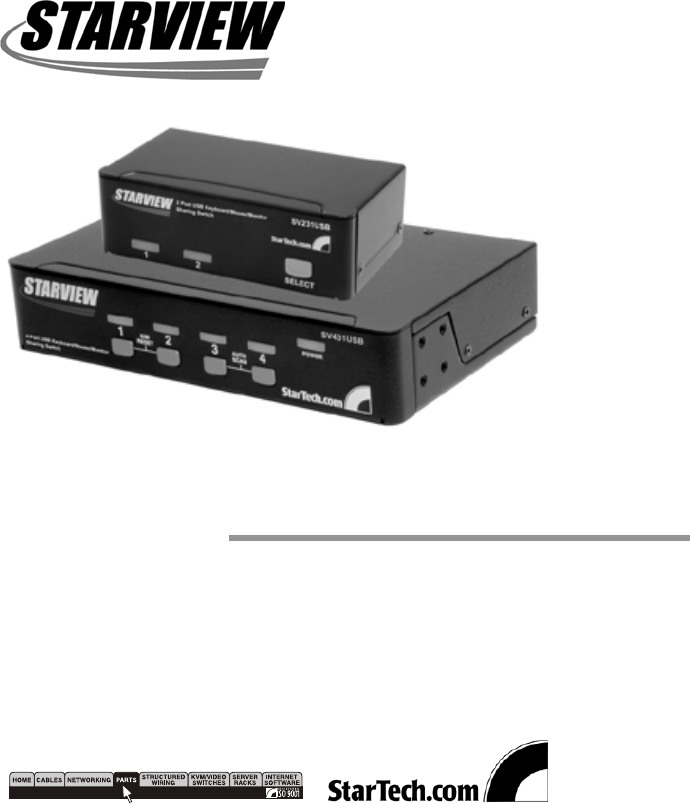
Startechcom StarView SV431USB Bedienungsanleitung
Stöbern Sie online oder laden Sie Bedienungsanleitung nach Computerzubehör Startechcom StarView SV431USB herunter. StarTech.com StarView SV431USB User Manual Benutzerhandbuch
- Seite / 15
- Inhaltsverzeichnis
- FEHLERBEHEBUNG
- LESEZEICHEN
Bewertet. / 5. Basierend auf Kundenbewertungen

Inhaltsverzeichnis
Seite 1 - SV231USB
USB Keyboard/Video/MouseSharing SwitchUser's ManualSV431USBSV231USB
Seite 2 - Table of Contents
8For SV231USBTo activate the Auto Scan, press and hold thepushbutton down for 2 seconds until you hear a longbeep followed by a short beep. To exit fr
Seite 3 - Introduction
9Rack Mount Kit for SV431USB (optional)The figure below shows how to attach optional mountingbrackets and cable support to the SV431USB forstandard 19
Seite 4 - Features
10AppendicesSpecificationsSV431USB SV231USBNo. of computers supported 4 2Front panel push button 4 1Hot plug-and-play YesAutomatic scan interval 3, 8,
Seite 5 - Console Side
11TroubleshootingEnsure that all cables are well seated. Label thecable for each computer to avoid confusion whenconnected to the StarView switch.The
Seite 6 - Installation
12initialization.When StarViewswitch works underself-power, i.e., nopower supply added,it supports max of100mA as per USBspec.than 1A current rating t
Seite 7 - Console Connection
13Other StarView SwitchesOther high-performance StarView KVM switchesNo OSD OSD model 2 Console –OSD Model 2 port SV211KSV231 4 port SV431SV431HSV431D
Seite 8 - Computer Connection
Table of ContentsIntroductionOverview 1Features 2System RequirementsConsole Side 3Computer Side 3InstallationPC BIOS Notice 4Console Connection 5Compu
Seite 9 - Operations
1IntroductionOverviewThe StarView SV231USB and SV431USB, fullycompatible with USB specifications, are a combination ofUSB KVM (Keyboard/Video/Mouse) s
Seite 10
2Features?Manage 2 or 4 PC, G3/G4 Macs, or iMacs from oneUSB keyboard, mouse and monitor with theSV231USB and the SV431USB respectively?2 or 4 compute
Seite 11
3System RequirementsConsole SideOne VGA, SVGA or Multisync monitorOne USB keyboardOne USB mouseComputer SideEach USB enabled computer must be connecte
Seite 12 - Appendices
4InstallationPC BIOS NoticeThe following BIOS setup changes are necessary forPC users and not necessary for Mac users:1. In STANDARD CMOS, set HALT O
Seite 13 - Troubleshooting
5Console ConnectionBefore installation, make sure all devices and computersto be connected to the StarView switch have beenturned off.Plug a monitor t
Seite 14
6Computer ConnectionUse a HDB15 male-to-female cable to connect from acomputer’s VGA port to the StarView’s VGA port of thePC side, as shown in figure
Seite 15 - Other StarView Switches
7OperationsFront Panel1. On-line LED and Selected LED:When the LED turns green, the connected computeris powered-on. When a computer is selected itsc
Verwandte Produkte und Handbücher für Computerzubehör Startechcom StarView SV431USB
 (72 Seiten)
© 2020, manymanuals.de. Alle Rechte vorbehalten. | 0.020 s |
 Manymanuals.com
 Manymanuals.de
 Manymanuals.fr
 Manymanuals.it
 Manymanuals.pl
 Manymanuals.cz
 Manymanuals.es
 Manymanuals-pt.com
Kommentare zu diesen Handbüchern