Startechcom PM1115P2 Bedienungsanleitung
Stöbern Sie online oder laden Sie Bedienungsanleitung nach Computerzubehör Startechcom PM1115P2 herunter. StarTech.com PM1115P2 User Manual Benutzerhandbuch
- Seite / 17
- Inhaltsverzeichnis
- LESEZEICHEN

Inhaltsverzeichnis
Manual Revision: 01/23/2014For the most up-to-date information, please visit: www.startech.comDE: Bedienungsanleitung - de.startech.comFR: Guide de l&
Instruction Manual87. In the setup wizard, select an already congured printer from the list, click Next, Next and then Finish to complete the instal
Instruction Manual910. Make sure the Use the following port radio-button is clicked and select LPT1: (recommended Printer Port) from the pull-down lis
Instruction Manual1011. Select Manufacturer and Printer from the lists of printer drivers. Then click Next. 12. If you already have the printer’s driv
Instruction Manual1115. Click Start -> Printers and Faxes and highlight your newly installed printer.
Instruction Manual1216. Right-click, select Properties, then the Ports tab and verify that the print server’s port appears.
Instruction Manual1317. Select the General tab and click Print Test Page to verify the conguration. Note: If you want to install more print servers,
Instruction Manual14Technical SupportStarTech.com’s lifetime technical support is an integral part of our commitment to provide industry-leading solut
Hard-to-nd made easy. At StarTech.com, that isn’t a slogan. It’s a promise.StarTech.com is your one-stop source for every connectivity part you need.
Instruction ManualFCC Compliance StatementThis equipment has been tested and found to comply with the limits for a Class B digital device, pursuant to
Instruction Manual1Table of ContentsIntroduction ... 2Packagi
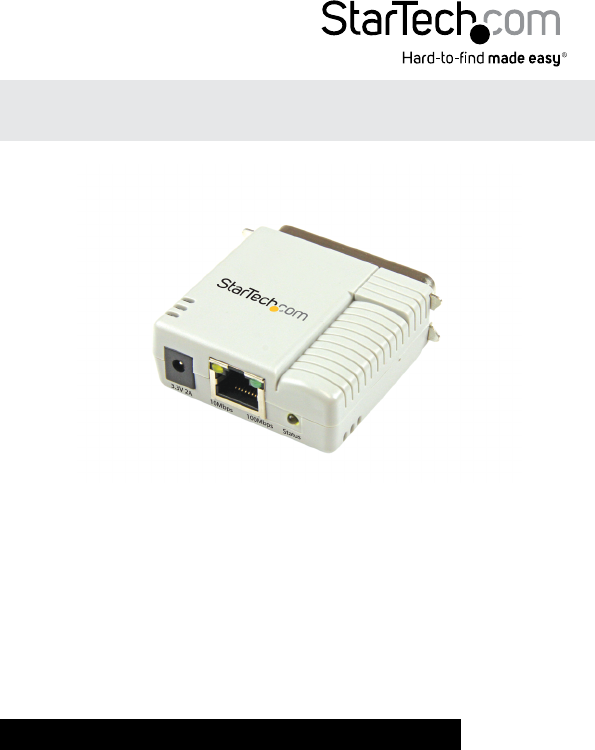
Instruction Manual2IntroductionPackaging Contents• 1x Parallel Print Server • 1x Power Adapter • 1x Software CD • 1x Quick Start GuideSystem Requi
Instruction Manual3Product OverviewLED IndicatorsLED State IndicationStatus Blinking for POST (Yellow)When power is connected, the Status indicator wi
Instruction Manual4Reset ButtonReboot the Print Server: 1. Verify the power of print server is turned on. 2. Press the reset button once, and then r
Instruction Manual5Software InstallationFor full operating instructions and specications, please visit www.startech.com/PM1115P2 Windows1. To enable
Instruction Manual65. From the “Select A Print Sever” screen, select the print server that you want to congure and click Next.
Instruction Manual76. Click “Yes, I want to change settings”, then click Next to congure the IP settings of the print server to match your network.
Verwandte Produkte und Handbücher für Computerzubehör Startechcom PM1115P2
 (41 Seiten)
© 2020, manymanuals.de. Alle Rechte vorbehalten. | 0.060 s |
 Manymanuals.com
 Manymanuals.de
 Manymanuals.fr
 Manymanuals.it
 Manymanuals.pl
 Manymanuals.cz
 Manymanuals.es
 Manymanuals-pt.com
Kommentare zu diesen Handbüchern